The PhoneGnome box is very much like the Slingbox. Slingbox plugs into your cable TV (or some TV source) and connects it to the Internet, as shown below: Slingbox makes your home TV service available to you on your PC or mobile phone over the Internet.
The PhoneGnome box does almost the exact same thing for your home telephone service. Let's change the above diagram to a PhoneGnome setup:
Just as Slinbgbox "slings" your TV, PhoneGnome "slings" your phone wherever you want. As with Slingbox, even though it doesn't show it in the above diagrams, both products can also "sling" to your mobile phone.
With Slingbox, your "TV Source" can be cable, antenna, a TiVo etc. With PhoneGnome, your "Phone Source" can be an ordinary landline (wall jack) or the output of a cable phone box, a Vonage box, or any ATA-based phone service. This means you can add a softphone to your Cable "digital phone" service using PhoneGnome. This makes it possible to use that unlimited calling plan anytime, anywhere. You can even use the ooma hub as your "Phone Source", making it possible to make free domestic calls anytime from your PC or mobile phone, or use your ooma service at work, or at Starbucks, etc.
Friday, April 25, 2008
PhoneGnome is Slingbox for your phone line

Friday, February 8, 2008
So what can PhoneGnome do for me?
The PhoneGnome service allows you to make and receive calls from your PC or regular phone. PhoneGnome accounts can be setup using any phone number - setting up an account is free. Calls between registered PhoneGnome numbers in the US/Canada (mobile or landline) are free, as are calls to registered landline numbers in designated "free countries"; calls to other numbers and SMSs to phones are very cheap. Phone numbers in many countries can be purchased at extra cost (~$3 per month for US numbers).
What do I need to use "PhoneGnome"?
- A mobile or landline telephone number
- A web browser to setup the account and initiate calls
Optional:
- A computer with headphones/speakers
- A SIP ATA
OK, let's get started...
Step 1: Create Account Visit my.phonegnome.com and enter your name, telephone number, email etc. to create a new account.
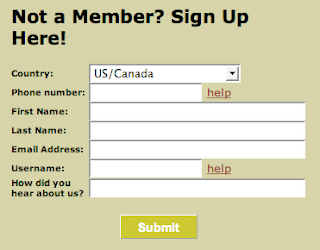
During the signup process, the PhoneGnome system will send you an email with a PIN code and a link to verify your number. When you click the link, PhoneGnome will call the phone number you entered (the phone number of your PhoneGnome account) and prompt for the PIN. Enter the PIN number and your account will be created.
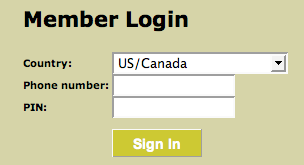
Step 2: Sign In
Visit my.phonegnome.com again and this time sign in using the telephone number you provided and the PIN that PhoneGnome assigned you.
Step 3: Test PhoneGnome
After you have signed in, type **3 into the "Quick Call" box and click the CALL button.
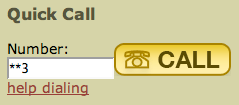
Your phone will ring and when you answer, PhoneGnome will say your telephone number.
NOTE: DO NOT test by calling your own number! This doesn't work because PhoneGnome first calls that number to initiate the call and so your phone will be busy when PhoneGnome tries to place the outbound call to that same number.
Step 4: Make calls to people who have also registered with PhoneGnome
This is where we see what separates PhoneGnome from services like Skype. With Skype, you would need to know the person's Skype-name and only if the other person is at their computer, would they hear Skype ringing. With PhoneGnome, you enter their real phone number the same way you dial it on your regular phone, and press the CALL button.
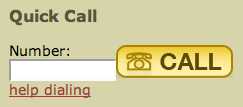
First your phone will ring and when you pick up, the other person's real phone will ring - even if their computer is not turned on. When they answer, you simply talk normally. They will not even know it was a PhoneGnome call.
Step 5: Make calls to people who can't (or won't) register with PhoneGnome
PhoneGnome can call any phone world-wide (including mobile/cell/hand-phones). It works the same as calling other PhoneGnome members - you just dial the phone number. You can purchase some calling credit, called voovox credits, (starting with $5). The call cost is typically about $0.02 per minute.
Your computer does not need to be on to receive calls
Unlike many other services, PhoneGnome members can call you free even when you are not at your computer. You do not need to leave your computer on or setup call forwarding when you are not signed in to PhoneGnome.
Additional PhoneGnome Features:
Adding Contacts
Click PhoneBook to manage your PhoneGnome contacts. Click [Add Contact] to add a new contact.
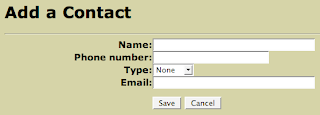
Enter the contact details and click Save.
Use PhoneGnome to record calls:
Simply put **732 before the number you're calling, and PhoneGnome will record the call. The recording will appear on your My PhoneGnome site under Call Analysis / Recorded Calls where it can be downloaded to your PC and used in other applications or played directly in the browser.
Calling users on other VOIP services
In addition to dialing regular phone numbers, PhoneGnome can also be used to call SIP Addresses, Skype (and SkypeOut calls), as well as calling users on other VOIP services and popular IM systems such as GoogleTalk, MSN, and Yahoo! For more detials, click the help dialing link next to the Quick Call button.
Note: Skype calling requires the PhoneGnome box and free GnomeLink for Skype feature activated.
Calling directly on the PC:
If your number is outside the "free regions" and therefore not eligible for free phone to phone calling, you can still use the PhoneGnome service to make free calls to other PhoneGnome members' real phones in the US/Canada and other qualifying numbers by using your PC. First you activate the feature called SoftGnome Remote Access on the My PhoneGnome 'features' page. Click Features / SoftGnome Remote Access / Activate and on that page download the free PC software provided by PhoneGnome (link here). Beware: The user name and password are not the same as what you use to sign in to your My PhoneGnome account. To get the username and password, go to Features / SoftGnome Remote Access / Edit / View SIP Credentials. If you don't have a PC, you can use any SIP softphone with the PhoneGnome "SoftGnome" SIP credentials. You can even setup an ATA box or Asterisk server to use your PhoneGnome account. PhomeGnome won't provide tech. support for that, but you can get help on the forums.
More cool features and sites:
We've only scratched the surface here. There's still Voicemail, downloadable Call Logs, Missed Call Notification, Find Me/Follow Me, PhoneGnome Mobile, PhoneGnome for iPhone, Voice Messaging, Dial-thru, and dozens of other features of PhoneGnome.
Monday, February 4, 2008
PhoneGnome on iPhone
PhoneGnome released what appears to be a customized version of their MobileWeb feature for the iPhone. I don't have an iPhone so I can't speak first hand about it, but according to the blog post:
- Use your iPhone to make calls on your home-phone or office-phone service through your PhoneGnome account
- Make International calls at cheap PhoneGnome rates - or even free!
- Check your PhoneGnome voicemail directly on your iPhone
- Have all your PhoneGnome Contacts conveniently and automatically on your iPhone
- Place calls to VOIP and IM users without hacking your iPhone
The interface looks pretty slick. Maybe when my contract runs out, I'll get an iPhone. In the mean time, I'm using PhoneGnome MobileWeb on my basic Verizon cell phone just fine.
Being able to check voicemails by clicking a link that goes right to the specific voicemail and plays it, without navigating an IVR menu, is simply addicting. That's certainly the coolest feature of PhoneGnome MobileWeb for me - and I don't need an iPhone to use it.
Friday, December 14, 2007
PhoneGnome Call Recording - very slick
I've searched all over the Internet and I have not found anything out there that matches PhoneGnome's phone call recording features.
There are software programs for a PC (using a modem) but this requires a PC to be left on. There are hardware gadgets that you connect to the phone line or the handset of your phone that can record to a tape machine. But none of these come close to the simplicity nor the capability of PhoneGnome. You can literally spend thousands of dollars on conversation recording equipment and still not have what PhoneGnome provides.
PhoneGnome provides both "selective recording" and "automatic" or "full-time" recording.
Selective Recording
Selective recording means you want to record a specific call. To do so, just dial **732 (**REC) before the call. At the end of the call, you can find the recording on your My PhoneGnome site (as shown above).
Automatic Recording
With "Automatic" or "Full-time" recording, PhoneGnome will automatically record conversations. You can record all outbound calls, all inbound calls, or both. When someone calls you, recording will be triggered automatically and the calls will be archived on your My PhoneGnome site by date and number.
To activate automatic recording dial the following codes:
| Code | Recording Mode |
| **7321 | Activate automatic recording of outgoing (placed) calls |
| **7322 | Activate automatic recording of incoming (received) calls |
| **7323 | Activate automatic recording of both outgoing and incoming calls |
| **7320 | Disable automatic recording |
Downloading
Recordings are stored on your My PhoneGnome website as WAV files. These can easily be downloaded to a PC and saved forever, copied to CDROM etc. The PhoneGnome website only holds recordings for so many days (about a week it appears), so if you want to keep a recording longer than that, you must download it to your PC and store it off-line. There are utilities to convert the WAV file to other formats such as MP3. You can also do this conversion with iTunes (From the Advanced menu, choose Convert.)
Once you have the audio file on your PC, you can do anything you want with the recording using your favorite audio editing and mixing software - even lie detector analysis! :)

Disclaimer
The My PhoneGnome site has information about the legality of recording phone calls. There are other sites with information, such as: rcfp.org but I am explicitly NOT providing legal advice. The laws apparently vary by state so check with your legal advisers regarding the implications of recording phone calls.
Thursday, December 13, 2007
Will a Softphone work with my Cable VOIP service?
Here's a question I was recently asked:
I just got my cable company's digital (VOIP) phone service. Since I already had their Digital TV and Internet service, I got a really good deal on this.Answer: YES!
They basically just switched out my old cable modem for a newer one that supports this service. So I'm curious if there's any way I could make and receive calls on my Mac using my new phone service? So I was thinking perhaps there's a softphone or some kind of application that would allow me to do this? I've looked around and seen some applications like X-Lite and iSoftphone but I'm not sure if these will do the trick. I'm actually not sure if anything will.
It seems rather complicated. This isn't something I really need, because I can obviously just use a regular phone, but it would be kind of nice.
Purchase the PhoneGnome box ($99) and connect it to your cable modem phone output (connect PhoneGnome between the cable box and your phones). Then you can use X-Lite or iSoftphone on your Mac using the SIP softphone credentials provided by PhoneGnome.
This way, you can even use your cable digital phone service when away from home - at work, from a hotel, at a friends house, Starbucks, etc. - anywhere you can get an Internet connection (even from another country). There are no extra monthly fees for this service - your cable company won't even know (and PhoneGnome doesn't charge monthly fees for the softphone capability).
By the way, this approach works with ANY hardware based VoIP service, even if they don't offer a softphone or support SIP, including even ooma.
Tuesday, December 4, 2007
Cheap International calls on cell phones

The new MobileWeb that we talked about recently has another feature that we didn't say much about.
It's a terrific way to make cheap International calls on your cell phone. Simply click 'Call' to dial any number, or click 'Contacts' to make a call to one of your My PhoneGnome contacts - which includes SIP, Gtalk, Yahoo! Messenger, or even Skype contacts. That means it's possible to call someone on Gtalk, SIP, or these other systems directly from your mobile phone, even without a special high-speed data plan or VoIP software download.
As an example, call someone in France for 2.3 cents per minute using PhoneGnome Mobile Web with no special plan and no monthly fee - as opposed to the standard AT&T rate of $1.49 per minute! If the person is a PhoneGnome member, the call is free - Even better!
Wednesday, October 31, 2007
PhoneGnome introduces new Mobile Web with Visual Voicemail
PhoneGnome today announced a new Mobile Phone version of their VoIP service. The new "Mobile Web" service lets us use our PhoneGnome accounts directly on our mobile phone web browser. Key features are:
(1) It doesn't require any downloads or installation of software. (2) You don't need high-speed data plan. (3) Visual Voicemail for (almost) any phone. (4) It's free.
They appear to have worked pretty hard to ensure the service works on more mobile phones than many other mobile phone apps that usually require a high-end smartphone, such as a Blackberry or Treo. I tried the service on an old Motorola V60 (monochrome 96 x 64 screen) which only supports WAP/WML 1.0 and it worked fine (despite the phone's clunky limitations). It looks great on Samsung T639.
Visual Voicemail
The PhoneGnome Mobile Web service provides access to your PhoneGnome Premium Voicemail directly on your phone. You can bookmark the voicemail page to get to it faster (maybe as few as 2 clicks, depending on the phone and how easy it is to call up bookmarks).
If you only have one voicemail, it's probably faster to call in and retrieve it the old-fashioned way. But if you have a number of pending messages, that's when the Visual Voicemail aspect really shines. You can see the list of messages, with caller details, time/date etc. and click to listen to just a specific message. Pretty slick.
PhoneGnome says the service works with any cell phone. It requires at least a basic Internet web browser and associated web surfing plan ($5.99/mo T-zones, for instance). Most phones sold in the last few years have at least a basic browser capability that would probably work with this service and more and more basic phone plans are including at least limited web access (since they sold you a phone that supports it, many people sign up for a plan that includes browsing).


